 SLON Privacy
Install Slon Privacy on Windows
Happ
Install Happ, add your Slon Privacy subscription, and connect to a server. Setup usually takes no more than 2–3 minutes.
Make sure your Slon Privacy subscription is active and your computer is connected to the Internet.
How to subscribe →Sign in
Sign in to your account through the Telegram bot or the website. Click “Home”, then click “Connect device”.
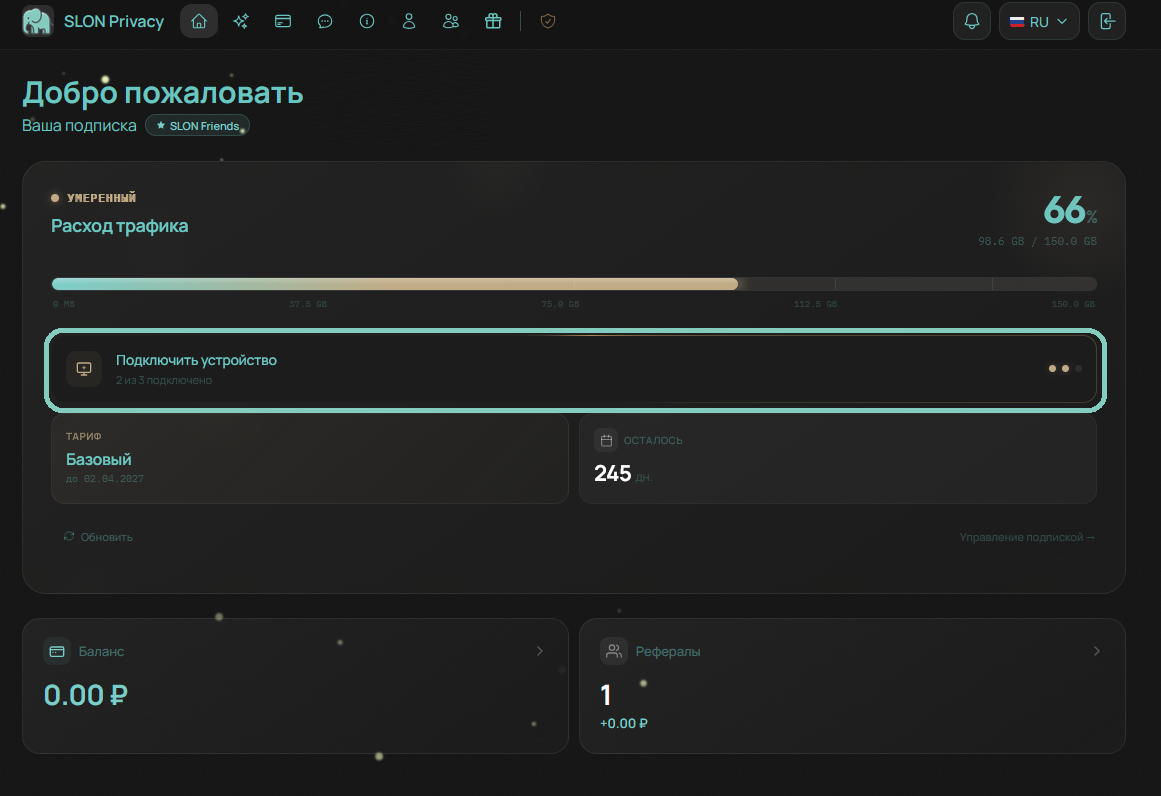
Install Happ
Select Windows as your device and Happ as the app.
Click the Windows button. The installer will start downloading automatically.
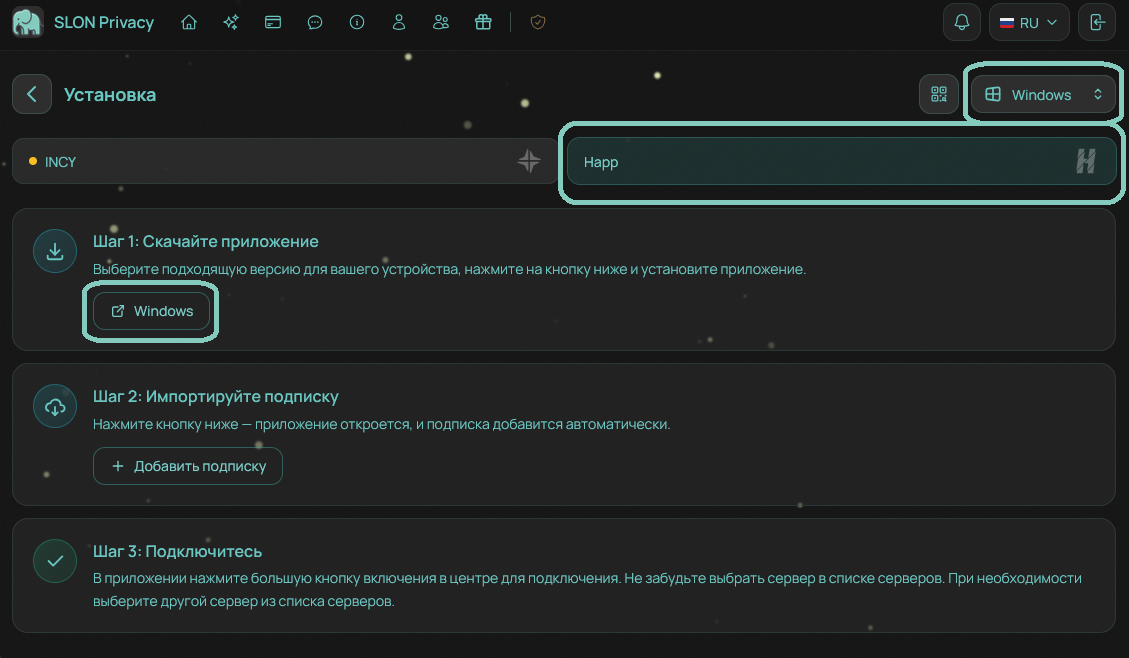
Once the download is complete, open the downloaded file and install the app.
Add your subscription
After installation, return to the Slon Privacy setup page and click “Add subscription”.
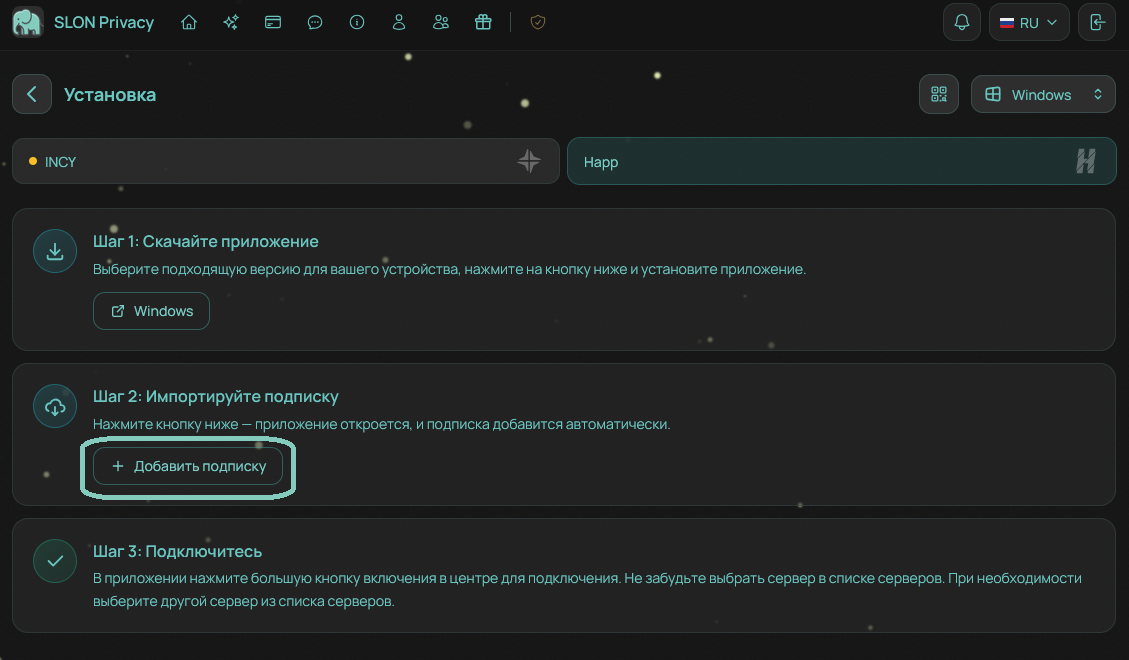
Happ will open automatically and your SLON Privacy subscription will be added to the app.
Connect
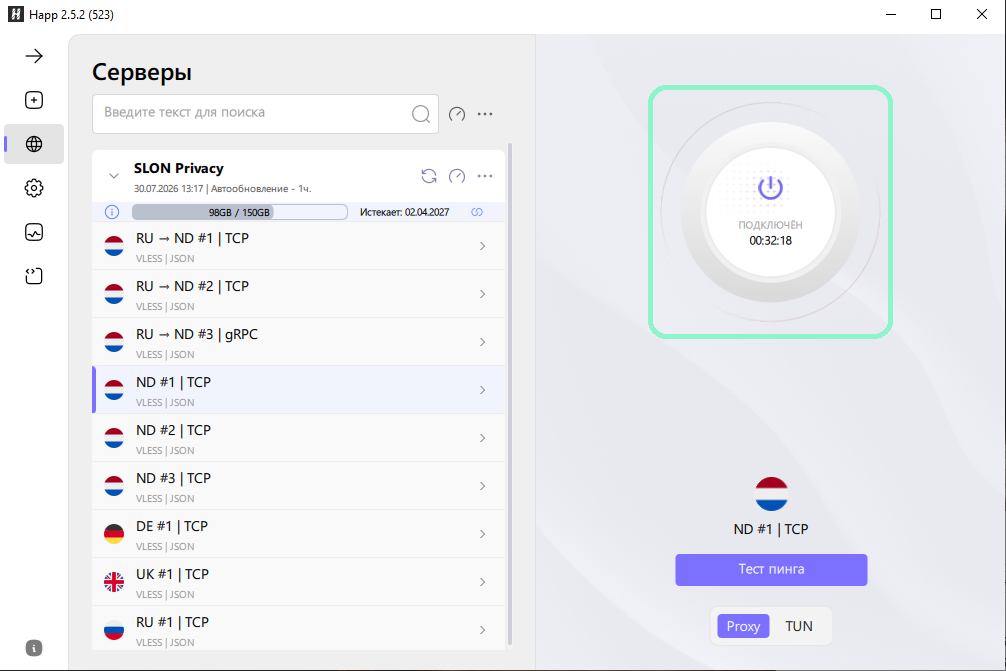
- Select any server from the Happ list.
- Click the large connection button.
- Grant the app all permissions requested by Windows.
- Wait for the connection status to change.
Troubleshooting
Happ does not open after I click “Add subscription”
Make sure the app is installed. Close your browser and Happ, then reopen the setup page and try adding the subscription again.
The subscription was added, but there are no servers
Click the refresh button next to the subscription name. If that does not help, add the subscription again. If necessary, contact support through @slon_privacy_bot.

The server will not connect
Check that your Internet connection works without the VPN, select another server, and try connecting again. Make sure the app has all requested permissions.
Error “Failed to start xray: app/proxyman/inbound: failed to start proxy > A required privilege is not held by the client”
Grant Happ all requested permissions and completely restart the app.
Check whether any other VPN apps, proxy software, or network services are running. Close them and try connecting again.
Having trouble using Happ?
Try installing . It is compatible with Slon Privacy and may work more reliably on some computers.
INCY
Install INCY, add your Slon Privacy subscription, and connect to a server. Setup usually takes no more than 2–3 minutes.
Make sure your Slon Privacy subscription is active and your computer is connected to the Internet.
How to subscribe →Sign in
Sign in to your account through the Telegram bot or the website. Click “Home”, then click “Connect device”.
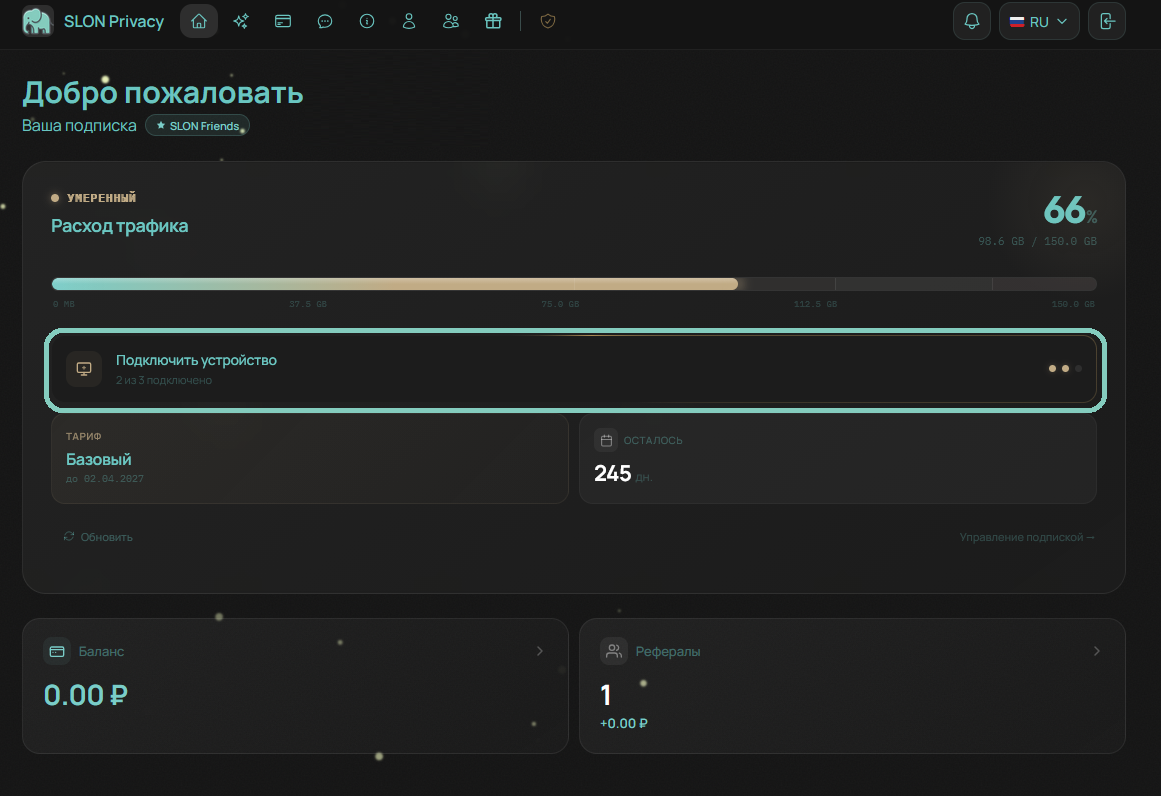
Install INCY
Select Windows as your device and INCY as the app.
Click the Windows button. The installer will start downloading automatically.
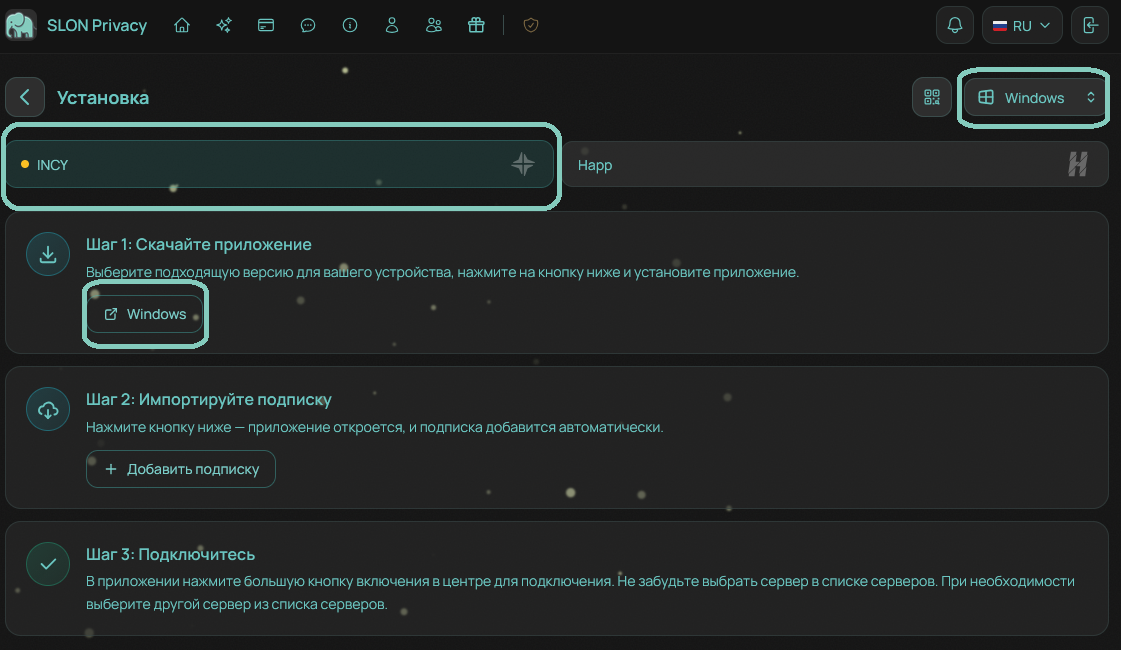
Once the download is complete, open the downloaded file and install the app.
Import your subscription
After installation, return to the Slon Privacy setup page and click “Add subscription”.
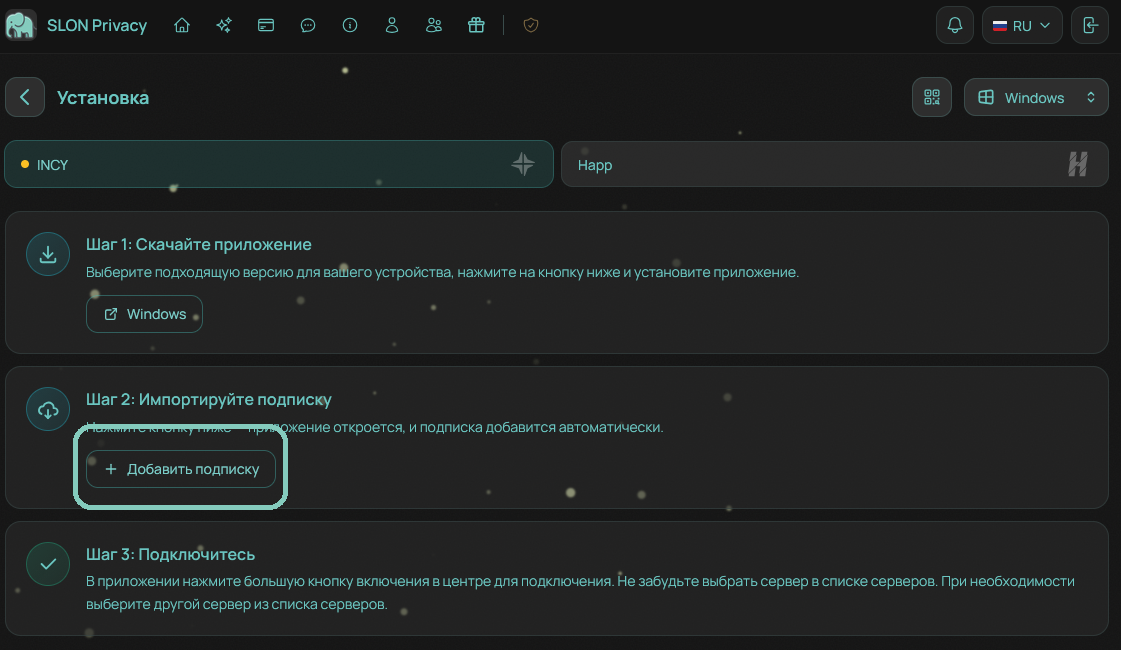
INCY will open automatically and your SLON Privacy subscription will be imported into the app.
Connect
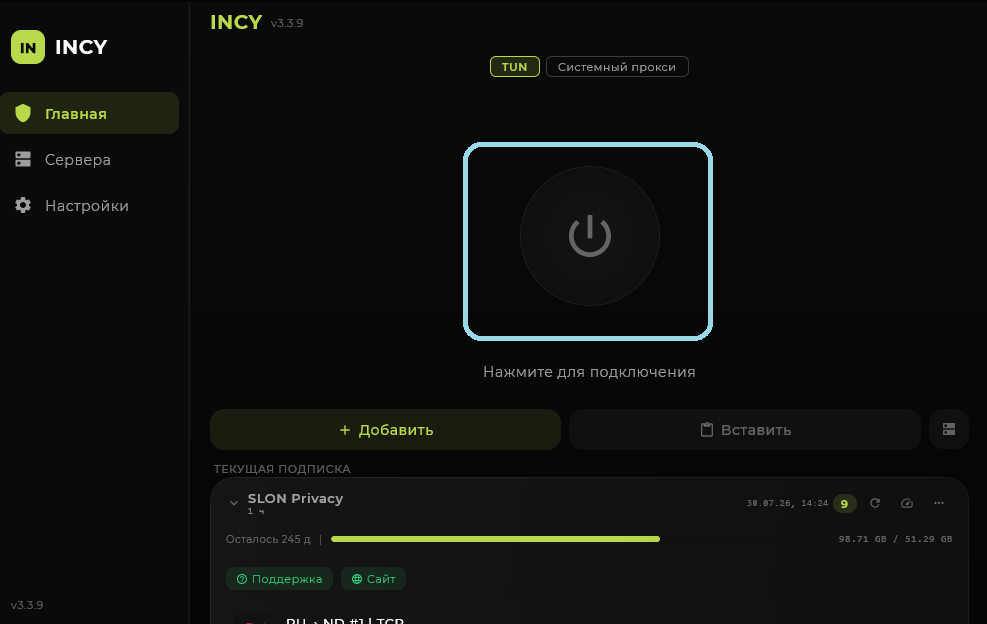
- Select any server from the INCY list.
- Click the large connection button.
- Grant the app all permissions requested by Windows.
- Wait for the connection status to change.
Troubleshooting
INCY does not open after I click “Add subscription”
Make sure the app is installed. Close your browser and INCY, then reopen the setup page and try adding the subscription again.
The subscription was added, but there are no servers
Click the refresh button next to the SLON Privacy subscription name. If the server list still does not appear, add the subscription again. If necessary, contact support through @slon_privacy_bot.

The server will not connect
Check that your Internet connection works without the VPN, select another server, and try connecting again. Make sure the app has all requested permissions.
Error “Failed to start xray: app/proxyman/inbound: failed to start proxy > A required privilege is not held by the client”
Grant INCY all requested permissions and completely restart the app.
Check whether any other VPN apps, proxy software, or network services are running. Close them and try connecting again.
Having trouble using INCY?
Try installing . It is compatible with Slon Privacy and may work more reliably on some computers.