 SLON Privacy
Install Slon Privacy on iOS
Happ
Install Happ, add your Slon Privacy subscription, and connect to a server. Setup usually takes no more than 2–3 minutes.
Make sure your Slon Privacy subscription is active and your iPhone or iPad is connected to the Internet.
How to subscribe →Sign in
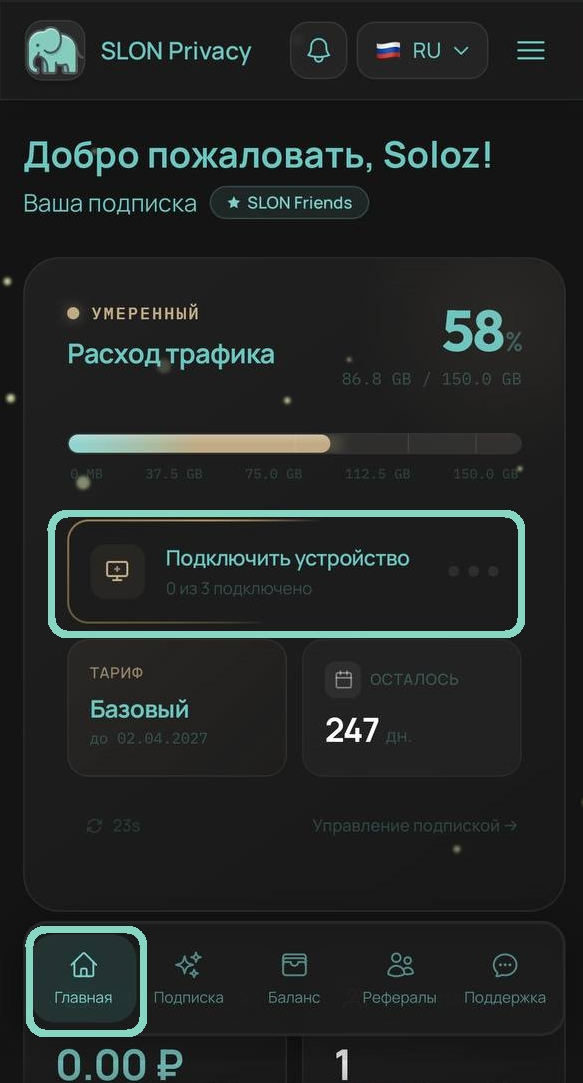
Sign in to your account through the Telegram bot or the website. Tap “Home”, then tap “Connect device”.
Install Happ
Select iOS as your device and Happ as the app.
Tap the appropriate App Store button and install the app.
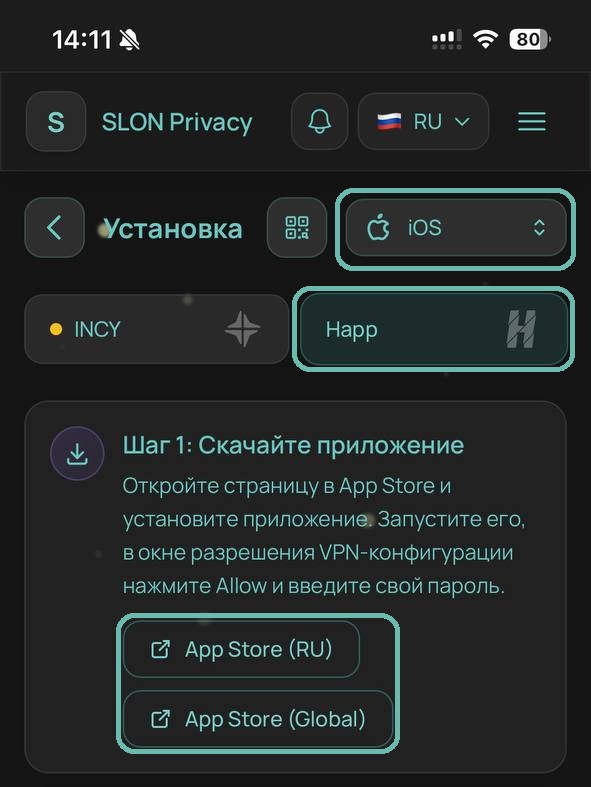
If the app is unavailable in the App Store, use INCY or change the region of your Apple Account.
Add your subscription
Return from the App Store to the setup page in your account and tap “Add subscription”.
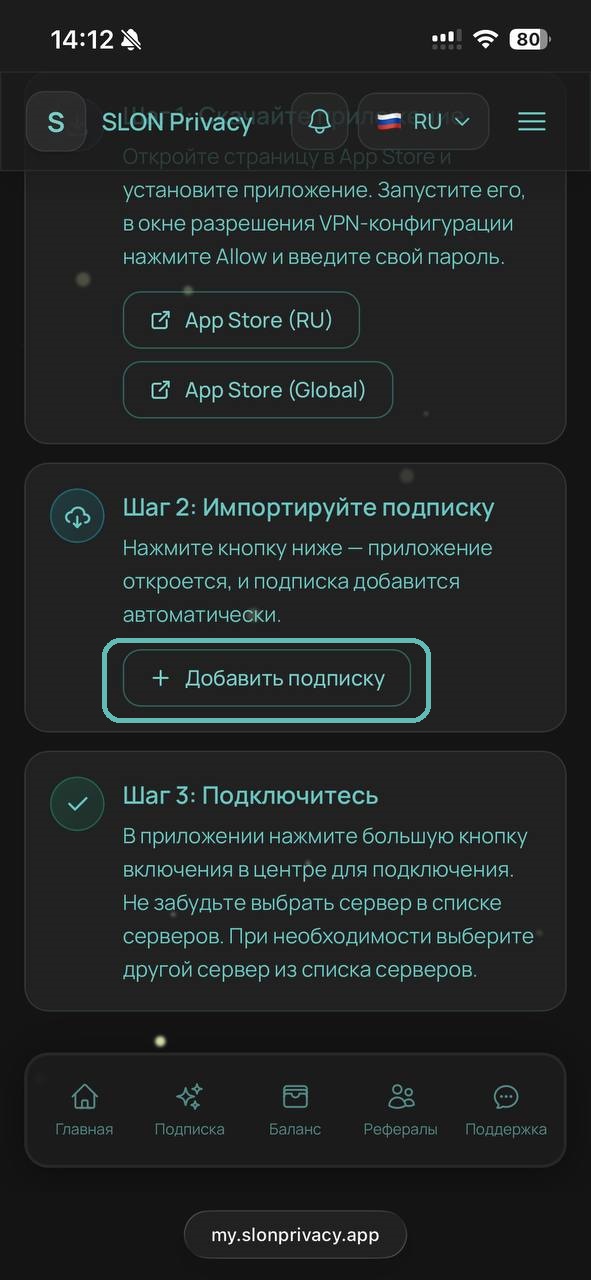
Happ will open automatically and your SLON Privacy subscription will be added to the app.
Connect
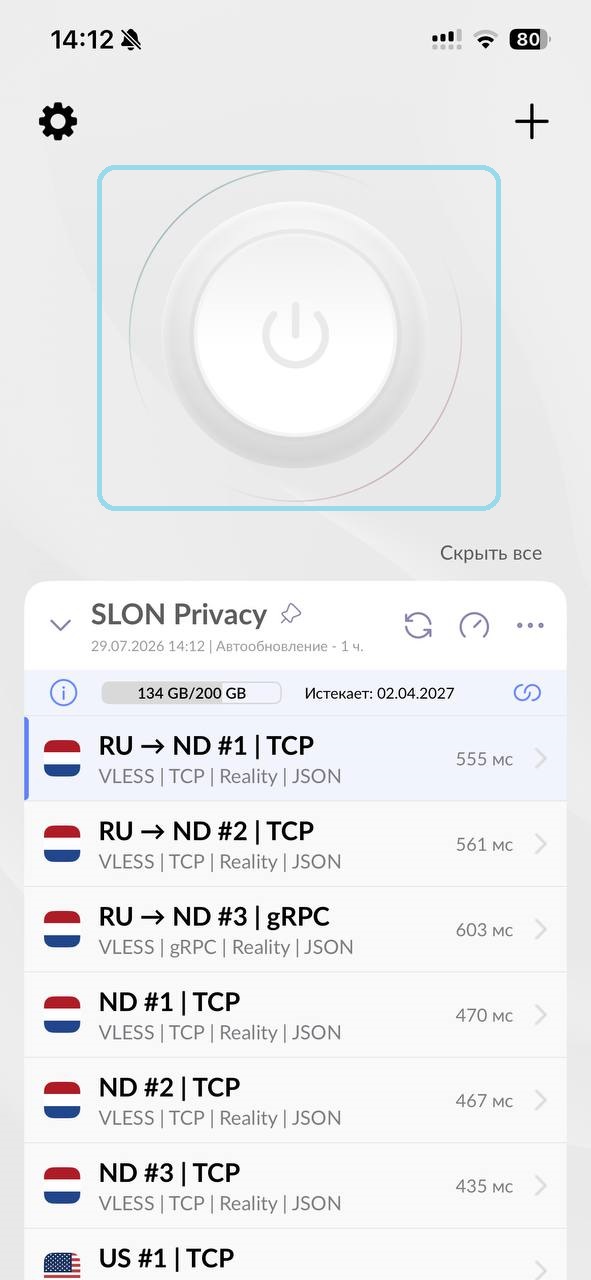
- Select any server from the Happ list.
- Tap the large power button.
- The first time you connect, allow the app to add a VPN configuration.
- Confirm the action with Face ID, Touch ID, or your device passcode.
- Wait for the connection status to change.
Troubleshooting
Happ does not open after I tap “Add subscription”
Make sure the app is installed. Close your browser and Happ, then reopen the setup page and try adding the subscription again.
The subscription was added, but there are no servers
Tap the refresh button next to the subscription name. If that does not help, add the subscription again. If necessary, contact support through @slon_privacy_bot.

The server will not connect
Check that your Internet connection works without the VPN, select another server, and make sure Happ is allowed to add a VPN configuration.
If iOS asks for permission to add a VPN configuration, be sure to tap “Allow”.
Happ is unavailable in the App Store
Change the region of your Apple Account or install .
Having trouble using Happ?
Try installing . It is compatible with Slon Privacy and may work more reliably on some devices.
INCY
Install INCY, add your Slon Privacy subscription, and connect to a server. Setup usually takes no more than 2–3 minutes.
Make sure your Slon Privacy subscription is active and your iPhone or iPad is connected to the Internet.
How to subscribe →Video guide
Watch the complete INCY installation and connection process on iOS.
Sign in
Sign in to your account through the Telegram bot or the website. Tap “Home”, then tap “Connect device”.
Install INCY
Select iOS as your device and INCY as the app.
Tap “App Store” and install the app.
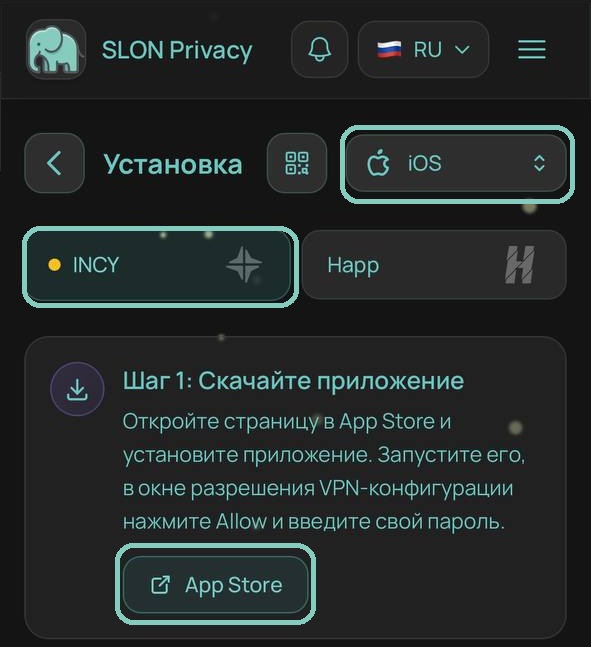
If the app is unavailable in the App Store, use Happ or change the region of your Apple Account.
Import your subscription
Return to the Slon Privacy setup page and tap “Add subscription”.
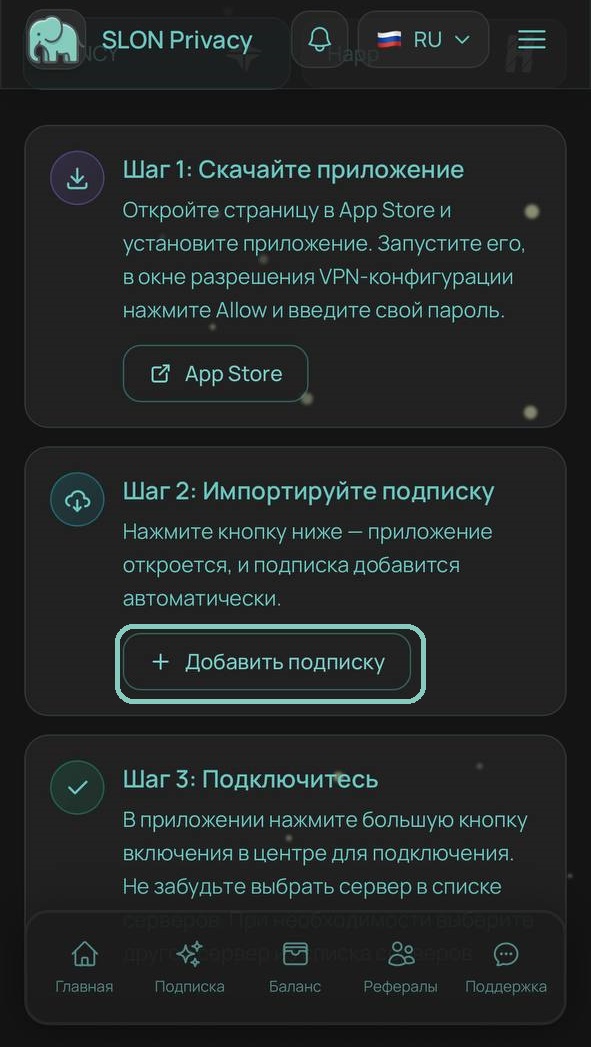
INCY will open automatically and your SLON Privacy subscription will be imported into the app.
Connect
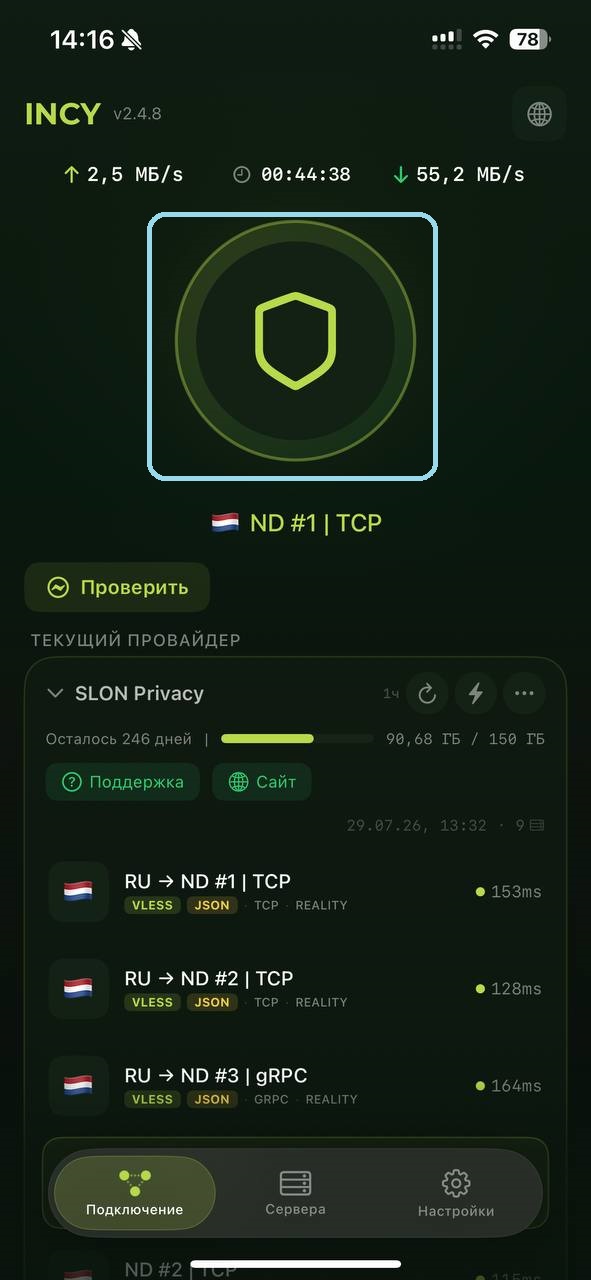
After the subscription is imported, the server list will appear automatically. Select a server and tap the large connection button.
- The first time you connect, allow the app to add a VPN configuration.
- Confirm the action with Face ID, Touch ID, or your device passcode.
- Wait for the connection status to change.
Troubleshooting
INCY does not open after I tap “Add subscription”
Make sure the app is installed. Close your browser and INCY, then reopen the setup page and try adding the subscription again.
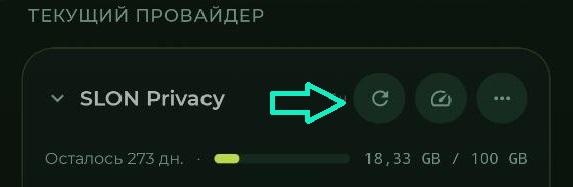
The subscription was added, but there are no servers
Tap the refresh button next to the SLON Privacy subscription name. If the server list still does not appear, add the subscription again. If necessary, contact support through @slon_privacy_bot.
The server will not connect
Check that your Internet connection works without the VPN, select another server, and try connecting again.
Make sure INCY is allowed to add a VPN configuration. If a system prompt appears, tap “Allow”.
INCY is unavailable in the App Store
Change the region of your Apple Account or use another compatible app.
INCY connects, but websites do not open
Disconnect, select another server, and reconnect. Also temporarily disable other VPN apps and any apps that may manage network connections.